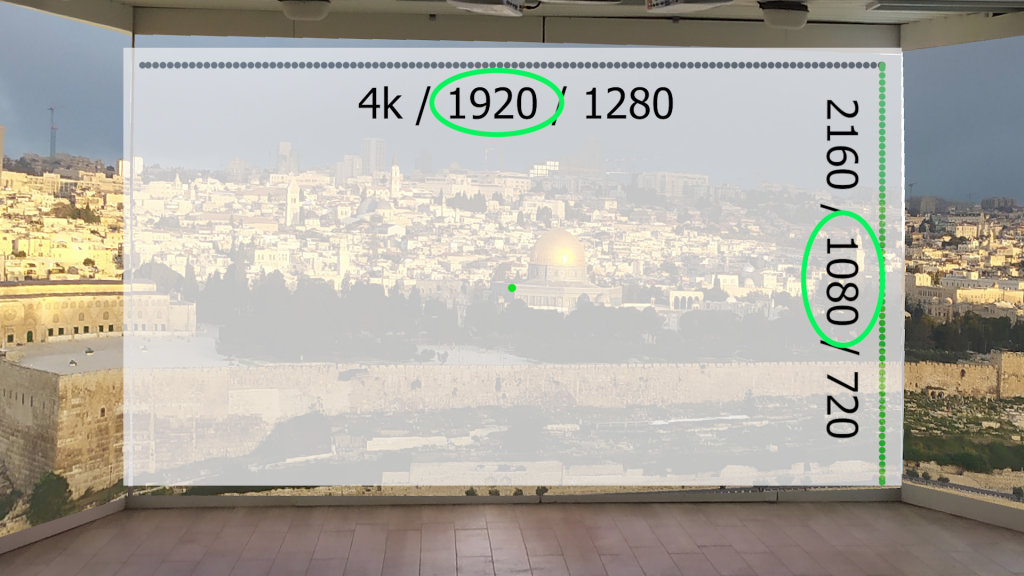
A guide to resolution
Resolution measures elements per unit of length or area. The small dots that make up an image are called pixels; one of the most common basic dimensions today is 1920 pixels wide.
An introduction to creating media – resolution
Many applications turn us into video editors or graphic designers. Canva is the most obvious example, but of course there are many other options. Without understanding the basics of proportions, meaning aspect ratio, and media dimensions, meaning the number of pixels, however, we can often miss the mark.
So in this post I will try to explain the subject.
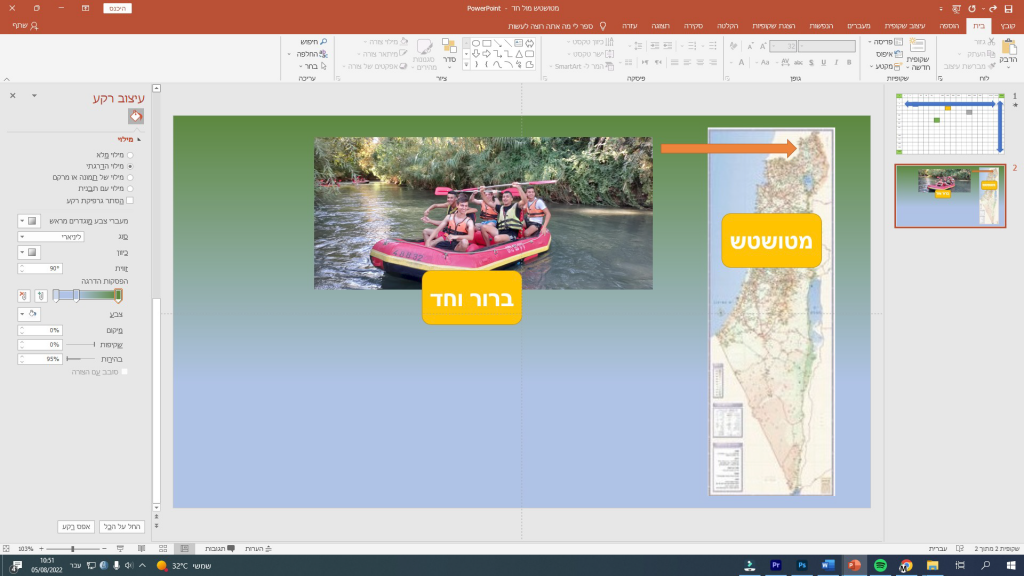
Resolution is measured in elements per unit of length or area. The tiny dots that make up an image are called pixels. Two numbers matter: the number of columns, meaning how many pixels make up the image's width, and the number of rows, meaning how many pixels make up its height.
The most basic and common dimensions today are 1920 by 1080, called full HD. If you design an image or video in full HD, there is a good chance it will fit your computer screen or a high-quality projector exactly. In other words, it will not be stretched, lose sharpness and look blurry on the one hand, or be unnecessarily large and take up storage for no reason on the other. Storage is not the only problem: files that are too large cannot be sent, so unnecessarily high quality also creates difficulties, particularly with video.
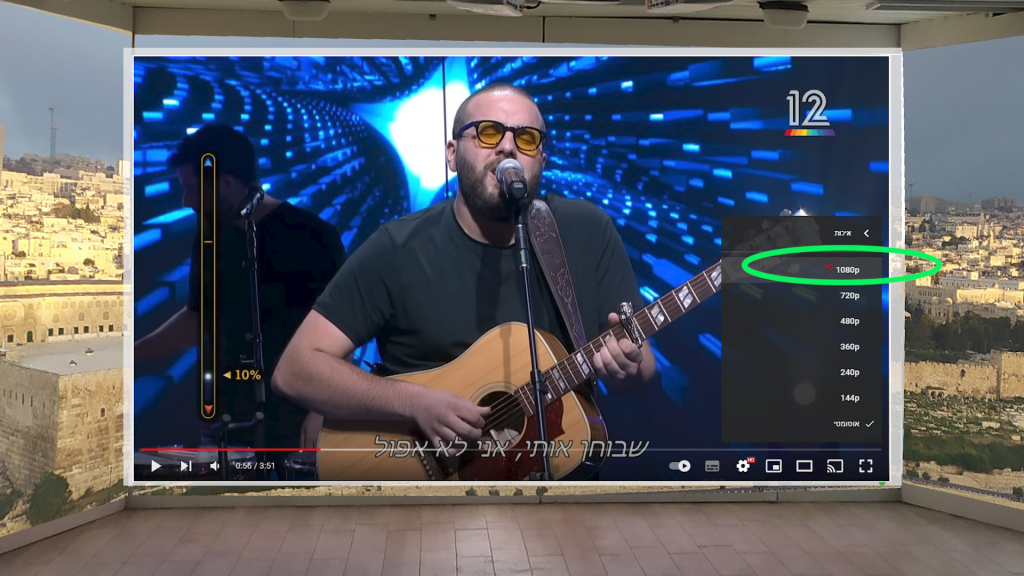
There are three main resolution levels suitable for work that will ultimately be displayed on a computer or projector. Always think about the purpose of the video or image, meaning where it will be displayed, to decide what you need:
- The first level is 1280 by 720, called HD. Many classroom projectors, for example, are HD projectors. A PowerPoint presentation also defaults to 1280 by 720, so if you are building a PowerPoint presentation and want an image or video to cover an entire slide, ideally you should find media of approximately that size. It can be a little smaller or larger, but try to keep a reasonable resolution and proportions that are as accurate as possible. That way, the image or video will not be blurry, have borders, or need stretching that distorts it.
- The second level, which I already mentioned, is 1920 by 1080, full HD. Canva, which follows in PowerPoint's footsteps, already sets full HD as the default when creating its videos and presentations. Why? Because the quality of screens and projectors keeps improving, and it would be a shame not to create a sharp, attractive image or video when, in a few years, a lower standard will no longer exist.